2010年10月30日星期六

How to upload videos to YouTube easily and quickly on Mac

Google has released basic software called Vidnik which is the quickest, simplest way to make movies using the built - in camera on your Macintosh and upload those movies to your YouTube account. You must first sign up for a free YouTube membership to upload videos. You can use Vidnik to create a video diary, or just to quickly record a video comment to attach to an existing YouTube video. Vidnik works with the built-in video cameras on recent Macs, with Firewire video cameras, and with many USB video cameras.

Part 1, use Vidnik to Record video segments using your iSight camera and upload them to YouTube.

upload video to YouTube

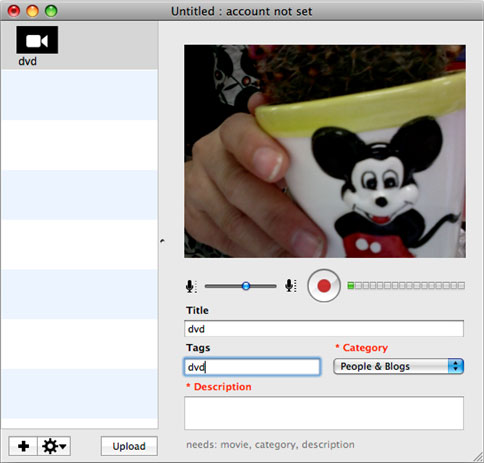
To use Vidnik, run the app, then click the record button to start recording. Click it again to stop. Trim to just the golden moments you want to keep, as in the screen shot above. Fill in the required title, description, and so on. Click the upload button. That's it.

Part 2, Use Vidnik to upload videos to youtube
You can drag movies made in other programs onto Vidnik's column of movies, and then click the upload button. And to use another program to do a little post-production, use the Gear menu to show Vidnik's movie file in the Finder. Edit the movie in the other program, and then upload it.Vidnik can only support videos such as: 3GP, AVI, DAT, MOV, MP4, M4A, WAV, AAC. It does not support ASF, FLV, MPEG, RM, WMV, MP3, AC3.
You can use the video converter for Mac to convert your videos to the formats that Vidnik can run.
If you want to upload DVD to TouTube, you need to use DVD ripper to rip DVD to video formats supported by YouTube first. If you are Mac user, you can use this DVD ripper for Mac .

upload DVD to YouTube

2010年10月29日星期五

How to change iPhone Wallpaper

Here are the easy steps you can take to change iPhone Wallpaper easily.

Make preparations:
Step 1: Find an image that you would like to use as wallpaper from iPhone Wallpaper.
Step 2: Right-click on a PC or control-click on an Apple computer and select "Save As" to save the image to your computer. Save it to your "My Pictures" folder or iPhoto library on a PC or Apple respectively, or wherever you prefer to store your images on your computer as long as you will be able to easily locate it.
Step 3: Connect the iPhone to your computer with the USB cable and wait for iTunes to launch itself automatically. Click on the "Photos" tab in the side panel.
Step 4: Click on the "Sync Photos From:" tab in the "Photos" menu on iTunes and locate the folder where your photos are stored. Select all of the images that you would like to transfer your to iPhone. Click on "Sync" in iTunes to transfer all of the photos to your iPhone.

Change iPhone Wallpaper
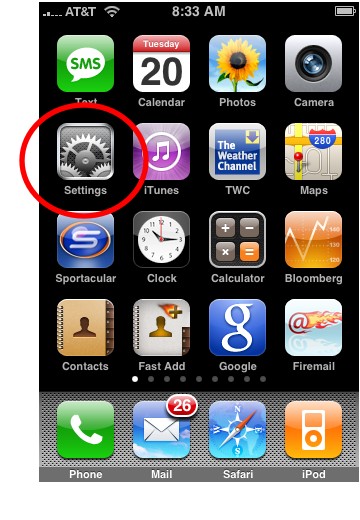
Step 1: Tap Settings on the iPhone’s home screen:

Change iPhone Wallpaper

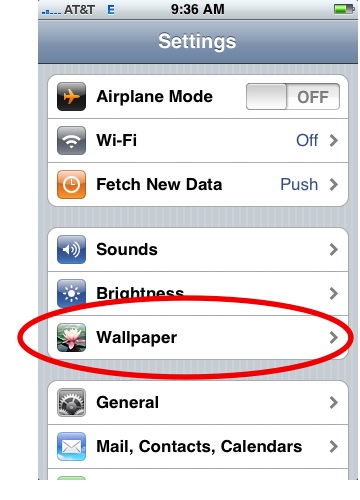
Step 2: Tap the Wallpaper tab:

Wallpaper Tab in iPhone Settings

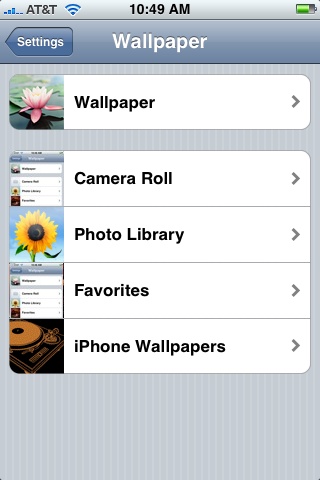
Several tabs should appear, including one that says Wallpaper. You can tap any of the tabs to select wallpaper for the iPhone. The Wallpaper tab features a collection of pictures supplied by Apple. The other tabs feature pictures you have added to the iPhone, including those taken with the iPhone’s camera.

Wallpaper Selections

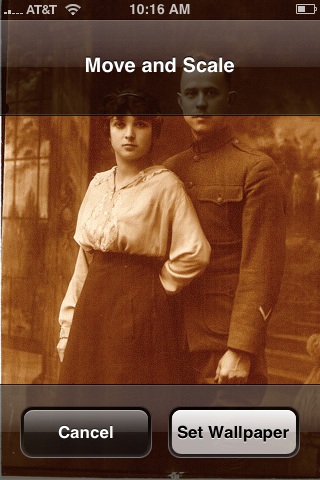
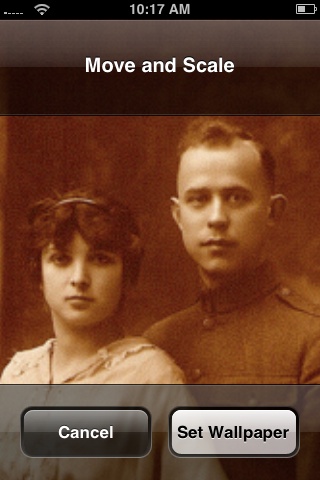
Step 3: Tap any picture. A preview screen of the wallpaper will appear, along with the words Move and Scale at the top. You can pinch and reverse pinch the picture to resize. The transparent bars at the top and bottom simulate the bars for the clock and Slide to unlock that will eventually display on top of your wallpaper.
In the example below you can see that the heads of the two peoples will be partially covered by the top bar:

Resize iPhone Wallpaper

To fix, I will reverse pinch to expand the picture, then drag the picture so that their faces appear in the center:

Resize iPhone Wallpaper
Step 4:
Tap Set Wallpaper to finish.
To view your new iPhone wallpaper, put the iPhone to sleep by pressing the sleep button on the top of the iPhone. Then hit the home button to wake the iPhone, and you should see the wallpaper.
Note the position of the clock and Slide to unlock transparent bars. If you’re unhappy with the position of the wallpaper, repeat the steps above.

2010年10月26日星期二

How to Rip DVDs to iPod, iPhone, etc. with Handbrake

Do you want to watch your DVDs on your iPod, iPhone or Apple TV? Here's a guide which explains how to use an excellent software - Handbrake to rip DVD's into MPEG-4 video files.

Requirements:
1. VLC player (Handbrake 0.9.3 and higher)
2. iTunes 6.0.1 or later
3. QuickTime 7.0.3 or later
4. 500 MHz processor or better with at least 16MB of video RAM
Step 1: Download Handbrake
Download Handbrake from here and install it. Handbrake is free. If you already have Handbrake installed, please check to see if your version is out of date. Several new improvements have been made recently to the program, specifically for the iPod and iPhone.
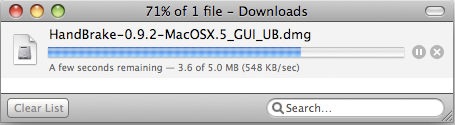
Download Handbrake

Step 2. Insert DVD
Grab a video DVD and put it into your computer. Handbrake can only convert standard video DVD's that you would normally play in a DVD player. If you have a DVD-ROM with video files saved on it as individual files (AVI, MPG, WMV, MOV, etc), Handbrake will NOT be able to convert these files. Handbrake only wants standard video DVD's.
Depending on your computer's preferences, the DVD Player application might automatically open. If it does, just quit it. Only one application should be accessing the DVD at a time.
Launch Handbrake. A screen asking you to select a DVD will appear. Select the DVD you've inserted into your computer and press the Open button.
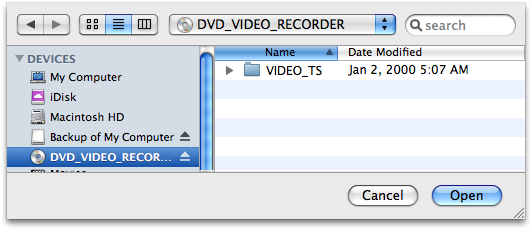
Insert DVD

Step 3: Download VLC player
What version of Handbrake are you using? As of version 0.9.3, Handbrake will no longer natively rip DVDs. Weird right? I wonder if they were getting some pressure from the movie industry. But don't give up on Handbrake just yet. You can still use Handbrake 0.9.3 to rip DVDs, you just need to install VLC on your machine first.
If you see the VLC screen like the one shown below, then you need to download and install VLC.
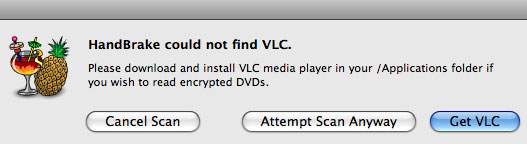
VLC on Mac

VLC Download Page:
http://www.videolan.org/vlc/

The VLC media player is a highly portable multimedia player for various audio and video formats (MPEG-1, MPEG-2, MPEG-4, DivX, mp3, ogg, etc.) as well as DVDs, VCDs, and various streaming protocols. It can also be used as a server to stream in unicast or multicast in IPv4 or IPv6 on a high-bandwidth network. Handbrake now uses some components of the VLC player and it must be installed if you want Handbrake to read DVDs.
After you download VLC, you need to install it on Mac:
VLC for Mac OS X is distributed as a disk image. Download the .dmg file, open it, and copy VLC to your hard drive (for instance the /Applications folder). Open VLC by double-clicking on it.

Step 4: Source Settings
Handbrake will now scan your DVD. This makes take up to a minute or two depending on the contents of the DVD and the speed of your optical drive.
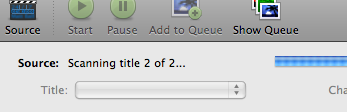
scanning

Title: By default, Handbrake will select the longest title in the list. However, this may not be the content you want.
Movies: If you are ripping a movie, the longest title is usually the main feature.
TV Shows: If you are ripping a DVD containing TV shows, you should see a list of several titles all about the same length. The shorter titles on the DVD are usually the video backgrounds used in the DVD menu screens and DVD extras like movie trailers. Unless you are a graphic artist, you probably don't want these tracks.

The shorter titles on the DVD are usually the video backgrounds used in the DVD menu screens and DVD extras like movie trailers. Unless you are a graphic artist, you probably don't want these tracks.

Title

If you only want to rip one title but aren't sure which one, you can click on the Picture Settings button (bottom right of the Handbrake interface) and manually step through several frames of the title to see what it looks like.
NOTE: Sometimes Handbrake is unable to see every track on a DVD. We've noticed issues with very old DVD's from the mid-1990s (before the days of fancy menus and Bonus features) and some newer DVD's like Stealth. There are different techniques and methods to authoring DVD's Sometimes the tracks get nested in weird ways that prevents Handbrake from seeing them. Other DVD ripping applications like Mac The Ripper and OSex might be able to see these tracks. Look for the longest track. That is probably the main feature.

Step 5: Destination Settings
The Destination section has 3 settings you can modify: file format, codec and file destination.
File Destination: You can name your file and choose its destination using this box. Try to pick a location that has sufficient disk space to store the ripped file. On average, you need about 1 GB per full length movie.

File Destination Settings

Step 6: Select A Preset
Handbrake has a variety of handy DVD ripping presets for iPod, iPhone, Apple TV, Xbox, Sony PSP and many more. Just select a preset and Handbrake will automatically fill in all the settings for you.
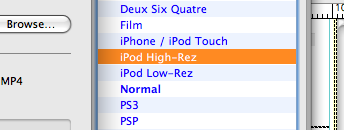
Preset

If you plan on watching this DVD on your iPod, iPhone or even Apple TV, we suggest you select iPod High-Rez and drop the average bitrate to 900 kbps. This will give you a nice high quality file that will work on both big (HDTVs) and small screens (iPod/iPhone) and won't take up a ton of hard drive space.
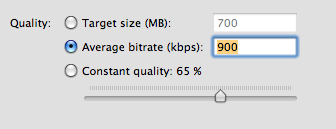
Handbrake - quality

Step 7: Picture Settings
Click on the Picture Settings button to launch a separate window. The only thing you really want to do here is to compensate for interlaced or grainy, compressed looking video. Handbrake will have adjusted everything here for you based on the preset you selected.
Sometimes video files will have horizontal lines in them. This is called interlacing. To get rid of interlacing, try turning on the Deinterlace option and select "Fast." The image below is animated and will toggle between when the deinterlace option is turned on or off. You can really see the difference around the edge of the flipper.
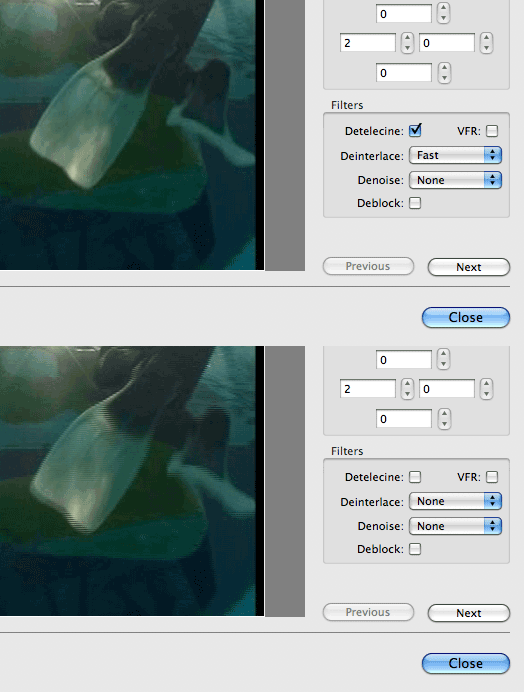
Handbrake - deinterlace

Denoise will help get rid of graininess and Deblock will help clean up blocky or compressed looking video. Experiment and try to make your video clip look the best possible.
NOTE: Your iPod really only wants video files that are 320 pixels wide by 240 wide. If you don't plan on watching this ripped DVD on anything else, you can mess around with the settings. Turn on the "Keep aspect ratio button" and decrease the Width until it says 320. Handbrake will auto-adjust the height to match the width. If your video source is 3:4 (full-screen), the height will be 240. For wide-screen content, the height will be a lower number. This is fine and isn't something to worry about.
But if you plan on watching this video on your TV with an Apple TV or an iPod Video dock, then you should keep the video size big. If you don't have the money for an Apple TV, there's this amazing iPod video dock called the Keyspan TuneView. If you want to hook your iPod Video up to your TV, you should check out the TuneView.
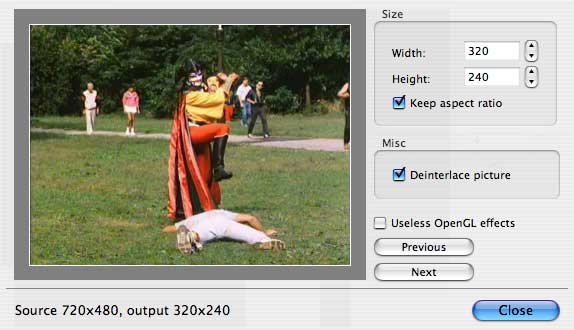
Handbrake - size

Step 8: Rip
Finally! Click on the Rip button and stand back. The encoding time will depend on several variables including: the duration of the video file, the speed of your computer, what other activity your computer is currently doing, the codec you selected (H264 or MP4) and if you decided to do a 2-pass encoding or not.

Handbrake - encoding

Handbrake will attempt to provide you with an ETA. The time will increase if you Pause the encode or do anything that will hog the processor like start a 3D render in Maya. We suggest you do your DVD ripping overnight or at a time when you don't need to use your computer.
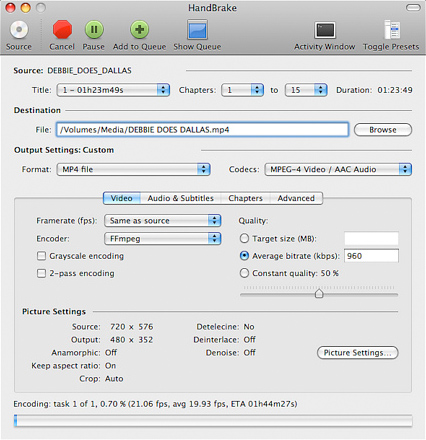

Handbrake

Step 9: Import Into iTunes
Connect your iPod Video or iPhone to your computer using the cable it came with and open iTunes (Applications > iTunes).
Drag and drop the video file into your iTunes library, or select Add to Library... from the File menu.
Make sure the video file you just added to iTunes is in a Playlist that will get synced to your device.
Select "Sync"
The sync may take a few minutes. Once the import completed, you could find the file which is ripped by Handbrake on your iPod or iPhone.
2010年10月24日星期日

H-P Releases Its $800 Slate, the Latest iPad Rival

Hewlett-Packard Co. released a touchscreen tablet computer Friday that runs Windows, becoming the latest computer maker to jump into the fray following Apple Inc.’s debut of the iPad earlier this year.

H-P’s Slate 500 tablet can be bought on the company’s website for $799—above the price of most iPads, which range in price from $499 to $829, depending on storage space and wireless connectivity.

The Slate 500, which has an 8.9-inch screen, will run Microsoft Corp.’s Windows 7 operating system, and is targeted at business customers. IPads have a 9.7-inch screen.

Read the rest of this post on the original site

2010年10月22日星期五

Viacom Grabs a Big Legal Gun for Its Next YouTube Fight

Viacom, which got roughed up quite badly in the last round of its YouTube copyright fight, has called in reinforcements. The cable giant has hired legal heavyweight Theodore Olson to help it appeal last spring’s federal court decision, which went entirely in Google’s favor. Olson’s long list of credentials include a three-year stint as George W. Bush’s top attorney, a job that included arguing lots of cases in front of the Supreme Court. Which is where Viacom/Google could eventually land.

2010年10月20日星期三

Microsoft’s Billion Dollar Media Bailout Plan

The advertising recovery is already in the works, but this could help move it along quite nicely: Close to a billion dollars in marketing money, courtesy of Microsoft.

That’s what Steve Ballmer and company will spend to push two big consumer tech rollouts in the coming months: Windows Phone 7, its attempt to claw back share from Apple and Google, and Kinect, its attempt to push its Xbox 360 platform past Sony and Nintendo.

Redmond’s plans for its phone rollout will reportedly involve more than $400 million in marketing efforts. And Kinect, a motion-sensor add-on for the Xbox, will be a half-billion-dollar project, says the New York Post’s Claire Atkinson. Here’s where some of that money will get spent:

  • Burger King promotion
  • Pepsi promotion
  • Kellogg’s cereal promotion
  • YouTube homepage takeover
  • Ad buys on Nickelodeon, Disney sites
  • Ad buys on ABC’s “Dancing with the Stars” and Fox’s “Glee”
  • Ad buys on Time Inc.’s People and InStyle
  • Times Square event

2010年10月18日星期一

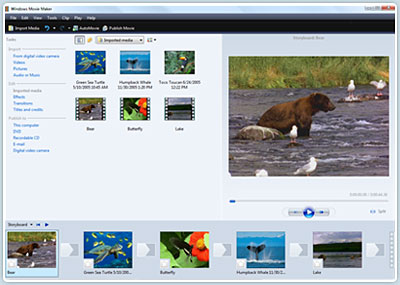
Using Windows Movie Maker to edit videos on PC for free

This is a tutorial which explains the process of editing videos on a PC using Windows Movie Maker and editing videos on Mac using iMovie. This tutorial will be a concise explanation of how to editing videos for free. Then share your movie via the Web, e-mail, or CD. Using dvd burner you can even take movies you've made and turn movies into DVDs.
You can also save your movie back to the video tape in your camera to play back on a TV or on the camera itself.

This tutorial includes three parts, this is part one:
Part 1. Using Windows Movie Maker to edit videos on PC for free
Part 2. Using iMovie to edit videos on Mac for free
Part 3. A table that compares free video editors.

Windows Movie Maker 2.1 makes home movies amazingly fun. With Movie Maker 2.1, you can create, edit, and share your home movies right on your computer. Build your movie with a few simple drag-and-drops. Delete bad shots and include only the best scenes.

Windows Movie Maker- edit video

Step 1, Capture video
You can capture video from video device, import video, pictures, audio and music. MM2 will allow you to import the following file formats:
- Audio files: .aif, .aifc, .aiff .asf, .au, .mp2, .mp3, .mpa, .snd, .wav and .wma
- Picture files: .bmp, .dib, .emf, .gif, .jfif, .jpe, .jpeg, .jpg, .png, .tif, .tiff, and .wmf
- Video files: .asf, .avi, .m1v, .mp2, .mp2v, .mpe, .mpeg, .mpg, .mpv2, .wm, and .wmv
If your videos are not the formats compatible with Windows Movie Maker such as MP4/3GP, FLV and MOV, MIDI, AIFF, AAC, you can use the video converter to convert the video to the formats supported by MM2 first.

Step 2, Edit movie
-Add Video Transitions.
Open your Windows Movie Maker project file. If Movie Maker opens in Timeline view, return to Storyboard view by clicking on the Show Storyboard link. From the Movie Tasks pane, under Edit Movie, select View video transitions . Choose the desired transition, select and drag into storyboard between desired clips. After inserting transition, sample the change in the Monitor to determine if it works in the way you desire. To change a transition you can Undo the action, right click on the transition in the Storyboard and select delete, or simply drag a new transition over the old transition.
-Add Video Effects.
Choose "View video effects" under the Edit Movie section and drag the chosen effect to the star in the lower left corner of the picture. Preview your movie to see the effects. Continue to add effects to other pictures if desired. Save the file. A video effect applies to the picture itself rather than the change from one picture to another as in a transition.
-Add Titles and Credits.
Under the Edit Movie section, choose Make titles or credits. You have several options for where to place your Windows Movie Maker title and credits. They may precede or follow a picture or video clip, or be used as an overlay.
Here are tips for you to add special effects to your movies using Windows Movie Maker

Step 3, Finish movie
Now that your movie is complete, you may wish to save the project in a different format.
Saving the project and saving the movie are two different things. The movie project is the working file so that you may continue to edit until you have a final version of your work completed. The movie file is the final output of your movie.
Windows Movie Maker compresses all the parts of your movie into a single unit. The file size is much smaller so that it can be used on a web site or emailed.
You also have the option to create a CD or DVD of your movie. These options are all under the heading Finish Movie. If you want to convert the movie made by Windows Movies Maker to other video format such as YouTube video, AVI, MP4, 3GP, you can use this video converter. You can also use free third-party software to burn the movie made by Windows Movies Maker to DVD for free.

2010年10月17日星期日

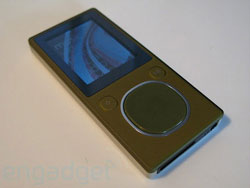
New Zune2 review (part 2-1) upgrade, hardware, software and Social

When we first caught wind that Microsoft was in fact doing its own portable media player (and then published the first ever photo of the Zune), we hoped it might finally be the play to knock the iPod off its perch. Sure, in mid 2006 there was no shortage of devices more advanced than any given iPod, but then (and now) the iPod enjoyed unchecked dominance of the market in the US and many countries abroad. Steve Jobs knew the day would come that Microsoft would really enter the game.
What we were hoping for was that the portable media world might be in store for another Sony / Nintendo upset. Remember in the 90s how Sony and Nintendo's partnership went awry, and Sony, totally sick of Nintendo completely owning the game console space, brought out the original PlayStation? Before the console's second generation was through Sony had more market share than they knew what to do with. Sony upped Nintendo's game with the PlayStation, then upped their own with the PlayStation 2 -- and took over.
If Sony could do the impossible and topple the infallible Nintendo of old, surely Microsoft, the world's largest technology company, could make at least make a dent in Apple's armor. Yeah, the first-gen product is important, but the second gen product is crucial, because if you can't up your game -- and everyone else's -- you're just another player. This year, Microsoft really had to make the Zune count. Read on to judge for yourself whether they did.
The first generation Zune, as we all know, was little more than a slew of off the shelf hardware and software Microsoft cobbled together in a rush to make a play for the annual holiday gold rush. And the interesting part is, all things considered, it really wasn't bad at all. No one thought it was "done", but it was a lot better than some of the other PMC-based devices we'd seen to date. This year Microsoft brought a slew of new Zune products (and enhancements) to the table, including two new players (flagship 80GB and the flash model), new device software (which runs on all devices), new desktop software, and a new service (Zune Social, a music-oriented social network reminiscent of Xbox Live).

The first generation Zune

Device software
Yeah, we know Microsoft technically skipped right past device software v2.0 and jumped to 2.2, but the update is the best place to start since it affects the most users and devices. Microsoft won some well-deserved brownie points for ensuring all Zune players new and old can run the new firmware, meaning that for now your old Zune will have feature parity with the new hardware.
So here's the deal with the device software: it adds some crucial bits (many of which we expected the first time), takes away some minor but important things, and leaves the other 90% largely unchanged. First, the stuff Zune 2.0 takes away:
Song flagging
The five star rating system
The language menu The good stuff, though, is very good:
MPEG-4 and H.264 playback support
Podcasting support
Sync over WiFi (which we'll get to later)
In terms of performance, both old and new hardware and firmware were almost identical in testing. A lot of people have been claiming the new firmware is much snappier, but we didn't find that to be true at all. Two Zune 30 devices boot up within a half second between 1.0 and 2.0 series firmwares, and the flash-based Zune 8 we tested booted to home screen less than a second faster. Traversing menus took no more or less time or when syncing and the like. (Note: scrolling through long lists appears to happen slightly faster, but that's likelier an interface tweak, not a performance increase.)

Related theme:
New Zune review part 2-1
New Zune review part 2-2
New Zune review part 2-3
New Zune review part 2-4

Recommended Products:
Aiseesoft DVD to Zune Suite
It can help you convert DVD, IFO and all video formats to Zune, Zune 2 MP4, WMV and Zune supported audio MP3, WMA, and AAC etc.

2010年10月16日星期六

How to reformat an iPod

This is a tutorial about how to reformat Windows Formatted iPod for Mac and how to reformat Mac Formatted iPod for Windows. There are 2 parts:
Part 1. How to reformat Windows Formatted iPod for Mac
Part 2. How to reformat Mac Formatted iPod for Windows

The way you see if an iPod is Mac or Windows-ready is to go to Settings --> About and scroll to the bottom of the screen. If it's formatted for Mac OS X, then the last item will be the serial number of the iPod. If it's Windows-ready, then after the serial number will be "Format: Windows". Simple enough, if a bit obscure.
If you wish to keep the songs you have on the iPod, you must first follow this tutorial to backup your iPod files to your computer.

Part 1, How to reformat Windows Formatted iPod for Mac
Step 1 Launch iTunes by selecting its icon in the dock
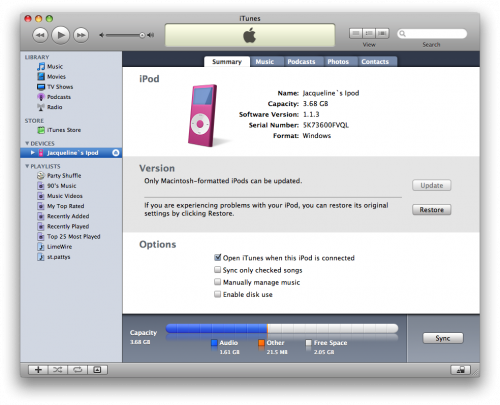
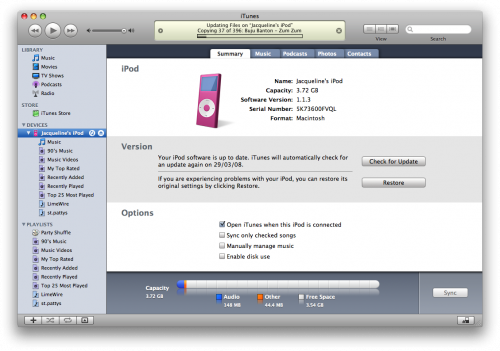
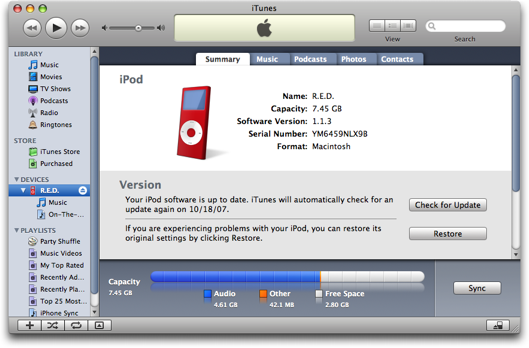
Step 2 Connect your iPod to the computer. Once it shows up in iTunes press the Restore button under the Summary Tab.

reformat windows formatted iPod

Step 3 A popup will appear warning you that all the songs on your iPod will be erased. Click the Restore button.
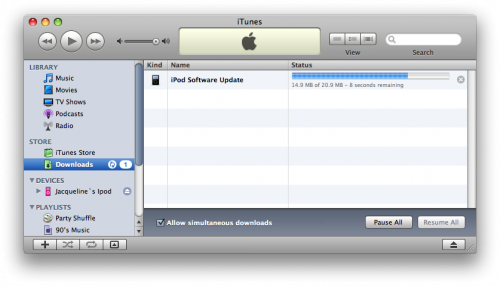
Step 4 An iPod Software Update window will open. Click the Next button.
Step 5 Click the Agree button to accept the license agreement.
Step 6 iTunes will now go and download the latest firmware for your iPod.

reformat windows formatted iPod

Step 7 Once installation begins it will ask you for an Administrator's username and password. Enter this information then click the OK button.
Step 8 iTunes will then format and update your iPod after which it will reboot.
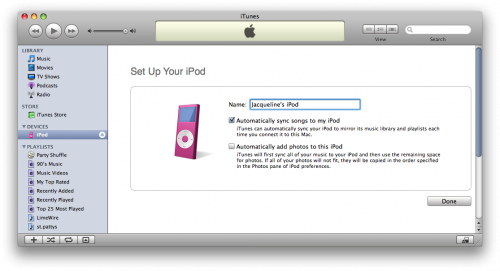
Step 9 Once complete you will be asked to name your iPod. Do this then press the Done button.

reformat windows formatted iPod

Step 10 iTunes will now automatically begin syncing your library to the iPod!

reformat windows formatted iPod

Part2. How to reformat Mac Formatted iPod for Windows
Step 1, Download the latest version of iTunes
Your first step should be to ensure that you have the very latest version of iTunes. You can do that by going to Download iTunes. Install that, and when you hook up your iPod, you should see it show up in iTunes, then when you click on the iPod on the left side of iTunes, you'll get to the summary screen.

iTunes

Step2 , Click the "Restore" button and you should be prompted to choose between four different options:
Restore Option 1: Restore - Restores with same iPod Software version already on iPod.
Restore Option 2: Use Same Version - Restores with same iPod Software version already on iPod even though a newer version is available.
Restore Option 3: Use Newest Version - Restores with the latest iPod Software available.
Restore Option 4: Restore and Update - Restores with the latest iPod Software available.

2010年10月11日星期一

Facebook’s “Social” Chief Pushes Human Interaction

Sitting in the cubicle next to founder Mark Zuckerberg at Facebook Inc.’s headquarters is a young executive who is taking on a critical challenge for the world’s largest social network: making it more social.

Chris Cox, Facebook’s 28-year-old vice president of product, manages the teams of programmers and designers behind last week’s unveiling of the social network’s newest feature—the ability to sort small groups of friends—as well as other recent additions like check-ins at real-world places.

In a company filled with often reclusive programmers, Mr. Cox is an extrovert who plays in a reggae band. His top job is deepening Facebook’s role in the lives of its users while toeing the line on privacy concerns by making the site hew to real-world social norms.
A Stanford-trained software engineer who joined Facebook in 2005 after dropping out of a graduate-degree program, he takes a social approach to designing products. Humans, not computer formulas, Mr. Cox insists, can make Facebook and the Internet more useful.

Read the rest of this post on the original site

2010年10月10日星期日

Caution: Holiday Shopping

Consumers will proceed with caution when it comes to spending this holiday season–especially on electronics. According to market research firm NPD Group, 61 percent of people taking part in its annual holiday survey say they’ll spend the same amount of money on gifts as last year, but five percent fewer are likely to spend it on electronics, videogames or DVDs.

2010年10月8日星期五

Must Be the Money

Social media is finally coming to a critical inflection point and make no mistake – it’s all about the money.

When I started blogging five years ago – early, but by no means among the earliest – the prevailing inclination among bloggers was to share and connect on an individual basis.

Read the rest of this post on the original site

2010年10月6日星期三

Download DVD PDF Podcast Limewire and YouTube video to iPod

This iPod Touch/Nano/Classic/Video guide includes the following ten parts:
1. How to watch PDF files and electronic books to iPod Touch/Nano/Classic/Video.
2. How to rip DVD and convert video to iPod Touch/Nano/Classic/Video.
3. How to watch iPod Video on large screen TV.
4. How to download youtube video to iPod Touch/Nano/Classic/Video for free.
5. How to download free podcast to iPod Touch/Nano/Classic/Video.
6. Where to download music and movie for iPod Touch/Nano/Classic/Video.
7. How to manage two iPods on one computer or transfer music between iPods.
8. How to copy and backup iPod files to computer.
9. How to hack iPod Nano to play games and music videos.
10. Why is that your iTunes converted videos has no sound

Part1. How to watch PDF or electronic book on iPod Touch/Nano/Classic/Video
iPod cannot directly display PDF files, you have to convert your PDF file or electronic book to *.txt format, and make sure the file size is smaller than 4KB, and then copy the *txt file to the “Note” folder of your iPod. Here are the detailed steps:
1. Enable your iPod as a portable hard drive, plug in your iPod to computer and run iTunes, in the summary tab, check the option named “enable iPod disk mode”
2. Download and install iGadget, it can convert and cut your files to 4kb .txt files. Here is the download link: http://www.youtubetoipod.biz/software/igadget.html.
3. Connect your iPod to computer, open “My Computer”, open the iPod drive (the new drive with your iPod name), and copy the txt file to the “Note” folder, done. Then you can read the text file on iPod note.

Part2. How to rip DVD and convert video to iPod Touch/Nano/Classic/Video
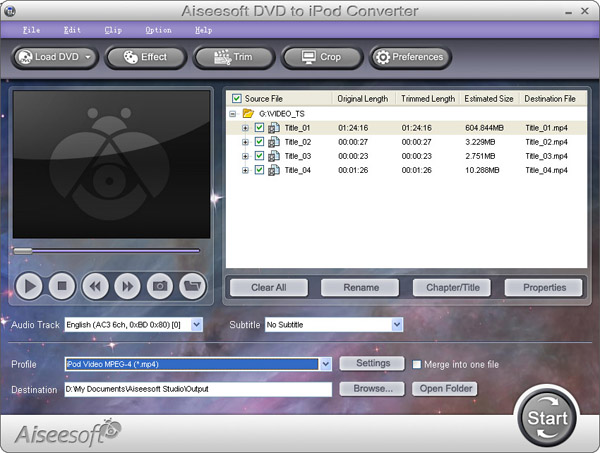
iPod can only play MP4 and H.264 video, but DVD movie is MPEG-2 video and CSS protected, so you need an application to rip DVD and convert video to MP4 video, and then sync it to iPod via iTunes. I strongly recommend Aiseesoft DVD to iPod Suite; it can rip protected DVD and convert limewire, youtube video, AVI, MPEG, WMV, MOV, FLV, XviD video to iPod. Also, I always use the iPod Movie Converter embedded in it to transfer video, and from my tests, it fully support all series of iPod including iPod Touch/Nano/Classic/Video. A really cool application.

DVD to iPod Converter

Here is its official download link:
http://www.aiseesoft.com/dvd-to-ipod-suite.html
Here is the official step by step guide:
http://www.aiseesoft.com/article/dvd-to-ipod-converter.html
If you are Mac user, you can use this DVD Ripper for Mac to rip DVD to iPod:
http://www.aiseesoft.com/dvd-ripper-for-mac.html

Part3. How to watch iPod Video on large screen TV
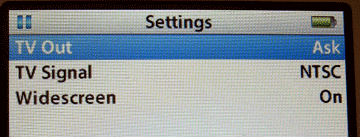
Set up your iPod video options. On your iPod choose Videos -> Video Settings from the main menu. You will see three options: TV Out, TV Signal and Widescreen. Select the “TV Out” option.

iPod to TV

Get your A/V cable. If you don't have an eighth-inch-to-RCA cable, you can pick one up on eBay for five or six bucks shipped. Search for "camcorder A/V cable." Remember, you want a three-plug yellow/red/white RCA connection at one end and a three-banded eighth-inch (3.5mm) A/V plug at the other.

iPod to TViPod to TV

1. Plug the red RCA plug into your TV's yellow RCA jack.
2. Plug the yellow RCA plug into your TV's white RCA jack.
3. Plug the white RCA plug into your TV's red RCA jack.
After making these connections, you're physically ready to begin playback.

Part4. How to download youtube video to iPod for free
iPod can play only MP4 and H.264 video, youtube video is stream video (.flv), so you need special software to capture the stream video to MP4 video, and then sync it to your iPod via iTunes. Here’re two ways to do that for free:
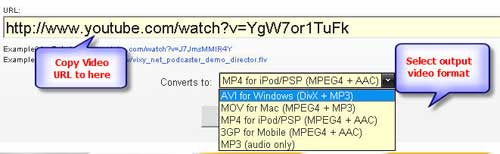
With free online flv converter such as http://vixy.net when you find your favorite youtube video, just copy the video URL (like this format http://www.youtube.com/watch?v=sdUUx5FdySs ) to the input box, choose the output format as iPod video, and then click start. When the conversion finished, you will get the MP4 video download link, just download and sync it to your iPod.

youtube to iPod

With Firefox + videodownloader, if you’re using Firefox browser, just install a plug-in named videodownloader, and then you will see a small icon in the bottom right, when you watch youtube video, double click it, and then you will get the flv download link. And then convert the flv video to MP4 video with Aiseesoft DVD to iPod Suite, done.

Free Trial: Download Aiseesoft DVD to iPod Suite

Next part: How to download podcast to iPod and copy music between iPods ?

2010年10月5日星期二

How to copy DVD to ISO file for Mac

ISO file is an unattached file format (like RAR and ZIP): it merges a series of files into one single file according to a definite format. So they are stored in an uncompressed format., then it is more practicable to to transfer it over the Internet or via a LAN connection.

There lists the capabilities of DVD Copy for Mac on ISO file:
Copy: the ability to copy DVD to ISO file for Mac.
Burn: the ability to burn ISO file to an optical Disc.
Extract: the ability to copy the content of ISO file to a hard disc.

Free download this DVD Copy for Mac to have a try!

Buy NowFree trial(Intel PPC)

Let’s take the example: How to copy DVD to ISO file for Mac

Click “Full Disc ” button or “Main Movie Mode” button on the main interface to select the copy DVD mode.

Select the source: Select the DVD-video disc here to copy your DVD file.

Choose the target: Choose the ISO image target here for copying your DVD files as ISO file.

Start to Copy:Click the “Start” to begin your DVD copying to ISO file on Mac.
learn more on: how to edit DVD file or ISO file with DVD Copy for Mac.

2010年10月4日星期一

How to Add Limewire Songs to iPod

Many people download music from Limewire, but they can only listen them on computer. Put songs from Limewire to iPod touch is really difficult to many iPod users. Yes, you need to convert Limewire songs to iPod audio format by iPod Music Converter; actually, it is iPod mp3 converter or audio to mp3 converter, because iPod accepts mp3 audio files.

This article will share you how to add Limewire songs to iPod.

Part 1: For Windows users, how to add Limewire songs to iPod.
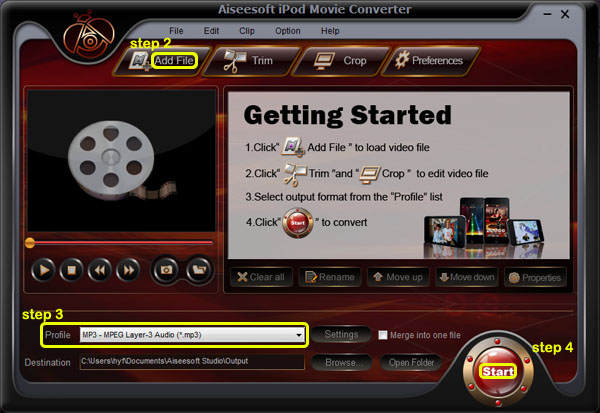
Step 1: Download Aiseesoft iPod Movie Converter
You need to download an iPod Music converter:

iPod Music Converter

Step 2: Add Music
Click “Add File” and find your Limewire songs to load into iPod Music Converter
Step 3: Choose output format
You can choose output audio format from profile drop-down list—MP3
Step 4: Start to convert
Click “Start” button to begin your conversion.

Then you also need a tool to transfer your songs to your iPod.
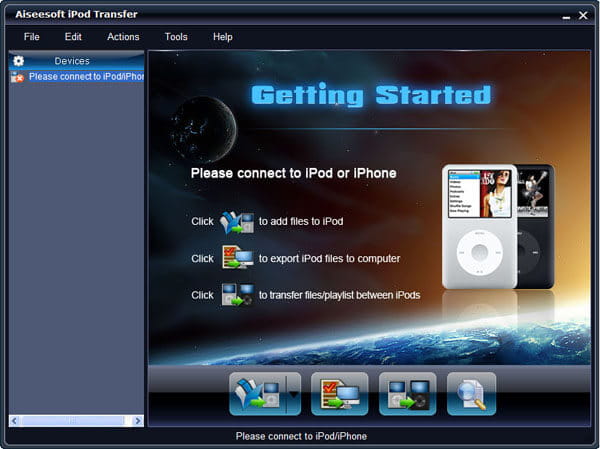
Here I recommend you Aiseesoft iPod Transfer.

iPod Transfer

It is very easy to use:
Step 1: Connect iPod.
Plug your iPod to your computer via USB cable.
Step 2: Add songs
Click “PC to iPod” button to pick up the songs you have already converted and click “OK”. Now, you can enjoy your Limewire songs on your iPod at will.

Part 2: For Mac users, how to add Limewire songs to iPod
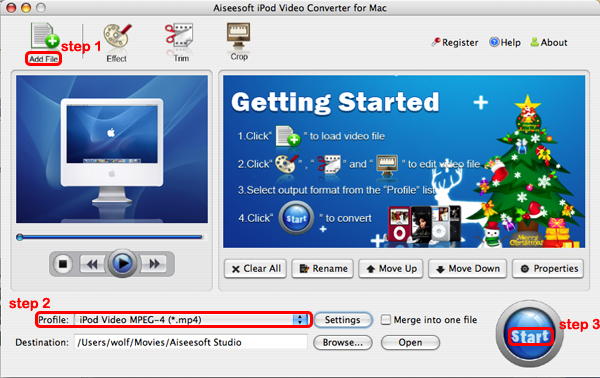
For Mac users, I recommend you Aiseesoft iPod Video Converter for Mac and Aiseesoft iPod Manager for Mac.

iPod Video Converter for Mac
Step 1: Add file
Click “Add File” to load your music
Step 2: Choose output audio format
Click “profile” to choose your output audio format.
Step 3: Convert
Click “Start” button to begin your conversion.

To transfer converted songs to iPod, Mac users can use iPod Manager for Mac.

iPod Manager for Mac
Step 1: Connect iPod
Plug your iPod to your computer
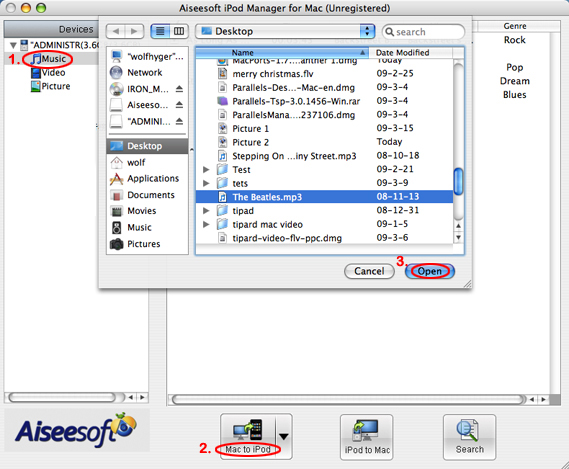
Step 2: Add music
1. Click “Music” (1)
2. Click “Mac to iPod” (2) and pick up the songs on your Mac you want to put on your iPod and click “Open” (3)
Few seconds later, the songs will be on your iPod.