2010年11月29日星期一

How to convert DVD, Movie, Music to iPhone ringtone and put ringtone on iPhone, iPhone 3G

Everyone wants his iPhone ringtone to be personalized,and sometimes want to make iPhone ringtone from a clip of their favorite DVD, movie or songs. Here I found a easy way to achieve this target for iPhone ringtone, hope it helpful.

The tools you need are Aiseesoft DVD to iPhone Suite and iPhone PC Suite (free), download links are as following:
Aiseesoft iPhone Converter Suite:
http://www.aiseesoft.com/downloads/dvd-to-iphone-suite.exe

iPhone PC Suite (Totally free)
http://www.free-codecs.com/download/iPhone_PC_Suite.htm

Note: iPhone PC Suite has to run under Microsoft .NET Framework, you can download it from: http://www.microsoft.com/downloads/details.aspx?FamilyID=333325fd-ae52-4e35-b531-508d977d32a6&DisplayLang=en

The iPhone ringtone guide is composed of 3 parts:
1. How to extract audio to ringtone from DVD?
2. How convert audio and video to iPhone ringtone?
3. How to sync/ put ringtone to iPhone without iTunes

Part 1 How to make iPhone ringtone from DVD?
Install Aiseesoft DVD to iPhone Suite and run it. For Windows Vista user, you may have to run this program as Administrator, right click the program shortcut and click “Run as Administrator”.
Run the DVD to iPhone Converter load your DVD by clicking “Load DVD” button, you also can load IFO file from your hard drive by clicking “Load IFO File” button.
Click drop down list and select iPhone supported format (AAC, MP3, WAV, etc.) you want:Convert DVD Movie to iPhone - format
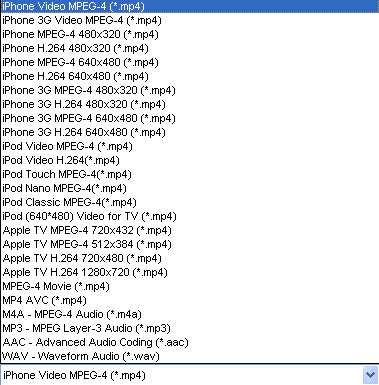
You can also customize the sample rate, bit rate and other parameters of your iPhone ringtone by click “setting”
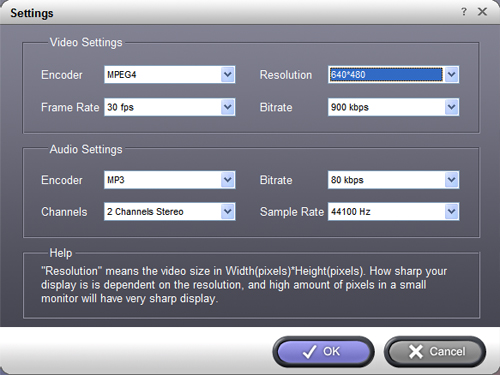
Convert DVD movie to iPhone - settings

To extract a clip from DVD to iPhone ringtone, you can click button “trim”, set the start time and end time.
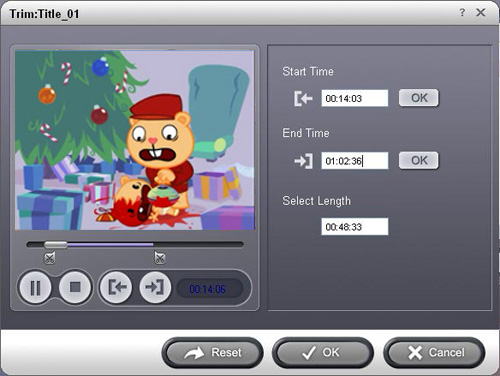
Convert DVD movie to iPhone - trim

Then click “Start” to extract iPhone ringtone from you DVD, Done.

Part 2 How to make iPhone ringtone from videos and songs?
Start Aiseesoft iPhone Movie Converter, then click “Add” button to load video file which you want to extract iPhone ringtone from(You can also load audio file to convert music to iPhone ringtone).
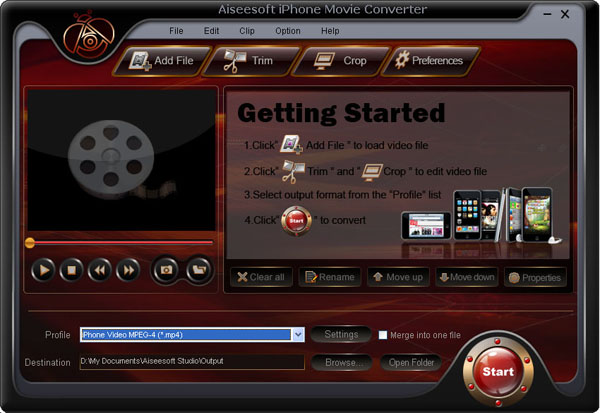
iPhone Movie Converter


Click drop down list and select iPhone supported format (AAC, MP3, WAV, etc.) you want:
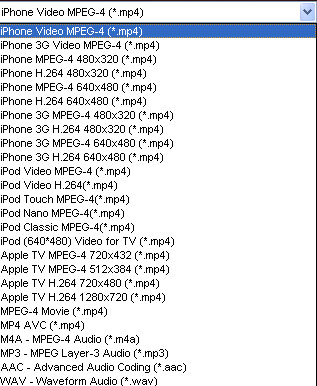
iPhone Movie Converter - output

The operation is similar as extracting iPhone audio from DVD with DVD to iPhone Converter, set sample rate, bit rate and other parameters of your iPhone ringtone by click “setting”

Most users’ iPhone ringtone are always short, so you may want to convert a clip from movie to set as ringtone. Click button “trim” to set the start and end point of your iPhone ringtone.

Then click “Start” to convert a clip to iPhone ringtone from your movies or songs.

Next part: How to sync/ put ringtone to iPhone/iPhone 3G without iTunes

Free Trial: Download Aiseesoft DVD to iPhone Suite

2010年11月26日星期五

How to backup DVD movies to DVD for free

This is a tutorial that explains the process of backing up a DVD on a PC using DVD Shrink. While there are many software solutions for backing up DVDs, the one on Windows I like is DVD Shrink. On Mac OS X, I like this DVD Copy for Mac.

that can copy DVD movie (D9 to D9, D5 to D5) with the entire movie in 1:1 ratio perfectly. This tutorial will be a concise explanation of how to backup DVD movie to DVD for free. There are many reasons to make a backup copy of DVDs one has purchased, keep reading to learn how to improve the quality of your re-encoded backups.

Step 1, download DVD Shrink
You can download DVD Shrink from: http://www.DVDshrink.org/.
For Mac users, you can download the DVD copy for Mac from here.

Step 2, Run DVD Shrink and insert your DVD movie into the DVD drive
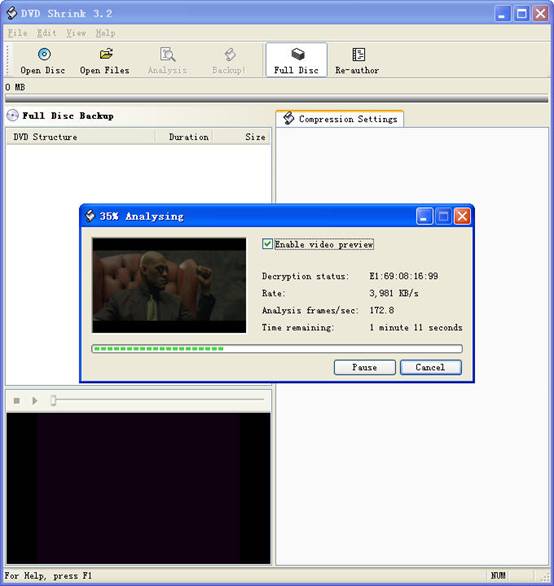
The first thing you will need to do is open the disc. Click on "Open Disk" at the top-left of the program window. A small window will pop up. There is a drop down menu - select the drive and disk that you are going to backup. Then click OK. When you click OK, the DVD will be “analyzed”–this process will last for 1-3 minutes, then DVD Shrink will “suggest” a level of compression.

back up DVD - insert DVD movie

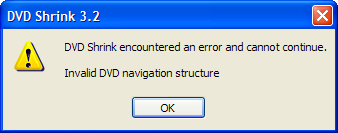
If you receive an error while trying to rip the DVD (like the one shown in the screenshot above), you will need to use another program such as DVD Decrypter to copy the DVD files off of the disc on to your hard drive. You need to minus the copy protections first. Click here to read how to use DVD decypher to minus the copy protections of DVD.

DVD decypher

Step 3. Adjust compression for individual Titles (optional).
DVD Shrink will automatically select the highest possible quality settings that will fit on your disc. You could accept the settings that DVD Shrink chooses. You can also increase the quality of the main movie file by reducing or eliminating other video and audio files on the DVD.
Many modern DVDs will contain bonus footage, trailers, multiple surround sound modes, and other settings that one can reduce or eliminate to improve the quality of the main movie feature.
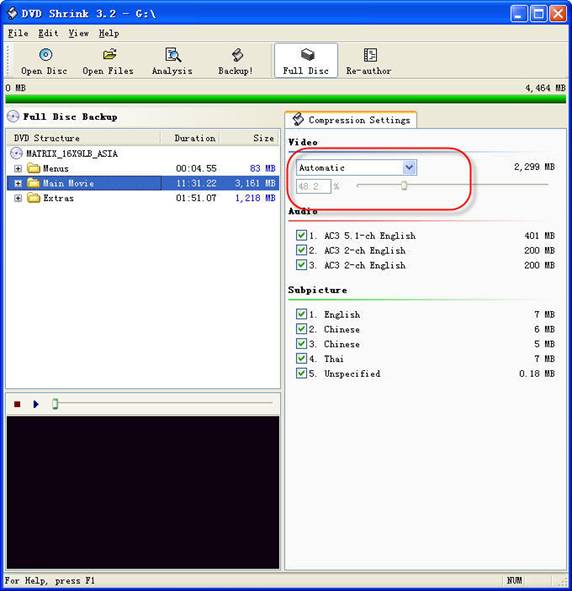
The main movie quality setting is reported to the left of a slider bar in the top right of the screen. In the screenshot below we see that the default setting requires that the main movie be compressed to 48.2% of its original level to fit on the disc. You can increase this percentage to improve the final quality of the backed-up DVD. But the output file will be larger.

backup DVD Movie - setting

The way in which one goes about improving the quality of the main movie will be different depending on your specific needs. For example, when “Dolby Digital” and “DTS” 5.1 audio tracks are available, you can remove “DTS” (to save hundreds of megabytes), you can also choose to preserve “DTS” and reduce or eliminate other items from the DVD.
Some of the settings I made to this particular DVD were:
--Removed “5.1-ch French” audio track (went from 48.2% to 55.4% compression for main movie).
--Replaced certain Titles with “Still Image” (keep reading for more on this).
To improve the quality of the main movie, you'll need to reduce or eliminate other DVD features, each called a “Title” in DVD Shrink. Click the “plus sign” next to “Extras” in the menu to view the other titles.

DVD Shrink

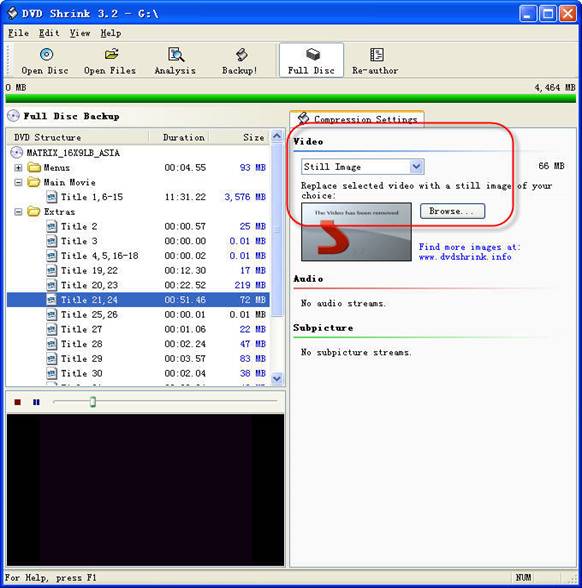
The Title I've selected below was 72MB. In this case the video was a “behind the scenes” feature that I did not wish to keep. Since one cannot completely remove any of the “Titles,” the next best thing is to replace them with a still image. In order to do this, select the title you want to replace, and choose “Still Image” from the drop-down menu in the top right. In this case the file went from 72MB to 66MB. The still image is configurable, simply drop an image of your own into the aptly named Still Images directory found under Program Files > DVD Shrink.

Step 4, Burn the re-encoded files to disc.

burn file

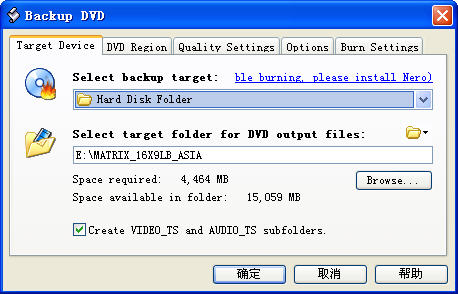
Click “Backup DVD” and Now select the folder where your temporary files will be saved. DVD Shrink needs to save a bunch of files on your computer (that actually compose your movie) so that it can burn that movie back onto another DVD. This is why you had to clear 5 gigs of space on your hard drive. Once the DVD backup has been burned, you can go ahead and delete these temporary files (the program does not do this itself).
You may as well select “Region Free” (default) under the DVD Region tab.
on the Burn Settings tab make sure “Maximum” burn speed is selected in the drop-down menu.
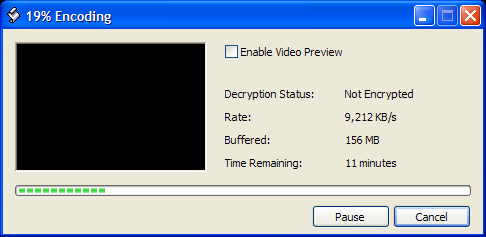
Once you have the settings the way you like them, begin the burn process. You'll see the “Encoding” happening first. There is a video preview that will show you where you are, but I believe that the encoding process goes slower with this setting enabled.

burn DVD movie - Encoding

Once the files have been copied to your hard drive, your original DVD movie will eject from your computer.
You will also have a pop up asking you to put a blank DVD into the DVD burning drive of your computer that you previously selected.
Exchange the original DVD movie for a blank, burnable DVD. Push the blank DVD into the drive. DVD Shrink will begin burning the new DVD automatically in a few seconds. Now you will get a pop up that shows the progress while the program burns your new DVD movie. Once the new DVD has been burned, you will get a window that tells you that it's done. Click OK, close the program, and take your new DVD movie backup. All Done!

Note: DVD Shrink is only for PC users. If you are a Mac user, Please download DVD copy for Mac .

2010年11月25日星期四

Some problems the new iPod touch users may meet

1. How to change iTunes to recognize the new iPod touch
Some New iPod users may meet the situation that your iTunes can not detect your new iPod nano, iPod touch, or iPod Classic. It should recognize it immediately. If it doesn't, download the latest version of iTunes. The problem will be solved:
1) Re-launch iTunes, with and without your iPod plugged in.
2) With iTunes open, reset your iPod Touch
(here:http://docs.info.apple.com/article.html?artnum=305743 ) Press and hold the Sleep/Wake button and the Home button at the same time for at least ten seconds until the Apple logo appears.
3) Restart your computer leaving your iPod touch plugged in
Note: If you uninstall iTunes from a computer, it will be uninstalled for all the users. But it will show up again for all users once you re-install it again. Before uninstalling each user should backup his/her playlists so they can bring them back when the re-install is completed.No music for any of the users will be removed by iTunes. It will remain intact where it is saved.

2.'I can't turn on my iPod'
I have a 1st or 2nd generation video iPod (80 gig).
My computer is windows 2000 so I downloaded the windows 2000 iTunes. So I decided to update my iPod, it was updated and it was fine. It ran out of power. Then it won't turn on? I tried to charge it but it just keeps saying please wait such and such. I left it there for like 2 hours already, and still it didn't charge up... Is the problem because I updated my iPod or something else? And when I opened my computer, iTunes asked me if I can format my iPod into windows. I put yes, it didnt do anything.So I have to problems, its not charging.. and its not turning on.
by Ashley :'My friend had this same problem a few years ago.She just left it plugged in to her computer for a few days, waited it out... eventually the problem fixed itself on its own. I'd say just wait it out for a day or two, and if it's still having problems, take it in to your nearest Circuit City or something.”
by Karat :'its the most popular iPod problem. If you drain the battery fully, you're screwed. Basically the battery is down, but the darn thing wont charge unless you connect it to the usb and the usb wont detect it unless it has charge! So please take it to your nearest apple outlet.”
by Kylla :'The one thing you never want to do with an iPod is let it run out of power, not good for it at all :P I've done it a few times but try to avoid it. What you want to do is hold the menu button and the play/pause button at the SAME time and just wait for it. It should restart it. Thats how my iPod works, yours could be different so experiment with the buttons. Try holding perhaps the center button and the play/pause button? or center button and the menu button? Try to see which two buttons will restart it, its bound to work. But hold BOTH of them down at the SAME time with one hand..and be patient, wait for about 10-15 seconds or so. :)”

3. Why does my 30G iPod video always die quickly?
Even when I am just listening to music. It shuts off after about 45 min. And that is a problem because I am going on a plane trip soon and I plan to watch a movie on my iPod, but movies eat your batttery. Does this happen to anyone else???? How can I make the battery life last longer. btw, it is only like a year old.
by dipin :'In an iPod the battery life is different.
it doesnt depend on how old it is rather it depends on how many times you have charged and discharged it.
for increasing the battery life you should fully charge the battery every time you are charging it . and secondly you should never let it discharge completely . put it on charging just before it shows the red signal and disconnect it only when it is fully charged.
sorry to say but now u'll have to get the battery replaced from apple reseller if you want to watch complete movie the battery life as said by apple is 500 complete cycles of charging and discharging”
by sugadoll :'The same thing happened to me. The problem is that your computer can't detect a completly dead iPod, but you need the computer to charge it so your screwed. j/k I solved it by pluging it into my ihome dock that plugs into the wall. So if you have a wall iPod dock or a car one you can charge it enough so that the computer can detect it. Problem solved.

Recommended Products For you:
DVD Ripper for Mac
Convert DVD to any video or audio formats on Mac OS X. Aiseesoft DVD Ripper for Mac is a professional Mac DVD ripper software.
Video Converter for Mac
Convert all video formats from one to another on Mac OS X. Aiseesoft Video Converter for Mac is a specially designed Mac video converter.

2010年11月24日星期三

Shunned Profiling Technology on the Verge of Comeback

One of the most potentially intrusive technologies for profiling and targeting Internet users with ads is on the verge of a comeback, two years after an outcry by privacy advocates in the U.S. and Britain appeared to kill it.

The technology, known as “deep packet inspection,” is capable of reading and analyzing the “packets” of data traveling across the Internet. It can be far more powerful than “cookies” and other techniques commonly used to track people online because it can be used to monitor all online activity, not just Web browsing. Spy agencies use the technology for surveillance.

Now, two U.S. companies, Kindsight Inc. and Phorm Inc., are pitching deep packet inspection services as a way for Internet service providers to claim a share of the lucrative online ad market.

Read the rest of this post on the original site

2010年11月22日星期一

Juniper Networks to Acquire Trapeze Networks

Juniper Networks announced on Tuesday that it will acquire Trapeze Networks in a bid toward strengthening its position in the enterprise WLAN market. The $152 million cash deal should close in the fourth quarter of 2010.

2010年11月21日星期日

Yes, Cord Cutting Is Real, Says Report That The Cable Guys Don’t Believe

Back to the cord-cutting debate!

Research firm SNL Kagan says the U.S. pay-TV business lost 119,000 subscribers last quarter. That’s only the second time in history that this has happened, and the first time was the previous quarter.

And it’s important to note Kagan is talking about all pay-TV businesses, not just the cable guys. Or more accurately: The cable guys like Time Warner Cable and Comcast are losing more customers (741,000) than the satellite guys and telcos like Verizon are adding (621,000).

If you want to spin this positively for the pay-TV business, you can argue that the losses are slowing: In Q2, pay TV lost 216,000 subs.

And if you want to be a little less positive, you can argue, as the cable guys do, that if they are losing customers, it’s because the economy stinks.

Nonsense, says the cord-cutting crowd, who believes that people are starting to leave pay TV, in increasing numbers, for a combination of the Internet, rabbit ears and the likes of Netflix and Apple TV.

And Kagan is with the cord cutters here. From their release:
“It is becoming increasingly difficult to dismiss the impact of over-the-top substitution on video subscriber performance, particularly after seeing declines during the period of the year that tends to produce the largest subscriber gains due to seasonal shifts back to television viewing and subscription packages.”

Or in English. People are cord-cutting. It’s happening now.

But here’s the thing: There’s a valid reason for the pay-TV guys to say they don’t see what Kagan is talking about. Because they don’t. Or at least they have numbers that say otherwise.

Here’s Time Warner CEO Jeff Bewkes, who owns several very successful cable networks, speaking at an industry conference today. “The trend, as far as we can see it, continues up…it’s all good,” he told the New York Times’ David Carr. “They’re not cutting.”

And look at these numbers from cable powerhouse Viacom, whose CEO Philippe Dauman just dismissed cord-cutting talk as “much ado about nothing”. They show Viacom’s overall subscriber count, network by network, for the third quarter. And all of the domestic channels’ sub numbers, at least, have increased in the last year (click to enlarge):

So something, somewhere doesn’t add up.

2010年11月19日星期五

How to Add Limewire Songs to iPod

Many people download music from Limewire, but they can only listen them on computer. Put songs from Limewire to iPod touch is really difficult to many iPod users. Yes, you need to convert Limewire songs to iPod audio format by iPod Music Converter; actually, it is iPod mp3 converter or audio to mp3 converter, because iPod accepts mp3 audio files.

This article will share you how to add Limewire songs to iPod.

Part 1: For Windows users, how to add Limewire songs to iPod.
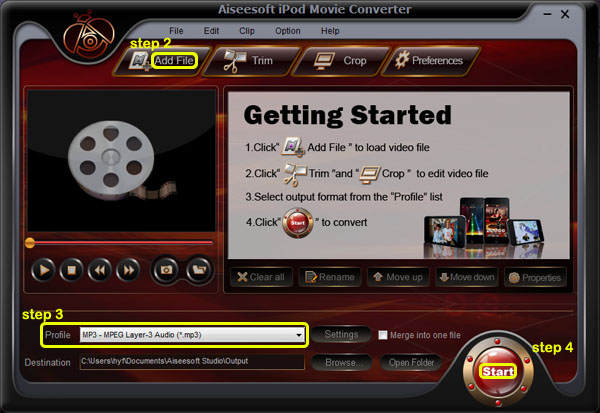
Step 1: Download Aiseesoft iPod Movie Converter
You need to download an iPod Music converter:

iPod Music Converter

Step 2: Add Music
Click “Add File” and find your Limewire songs to load into iPod Music Converter
Step 3: Choose output format
You can choose output audio format from profile drop-down list—MP3
Step 4: Start to convert
Click “Start” button to begin your conversion.

Then you also need a tool to transfer your songs to your iPod.
Here I recommend you Aiseesoft iPod Transfer.

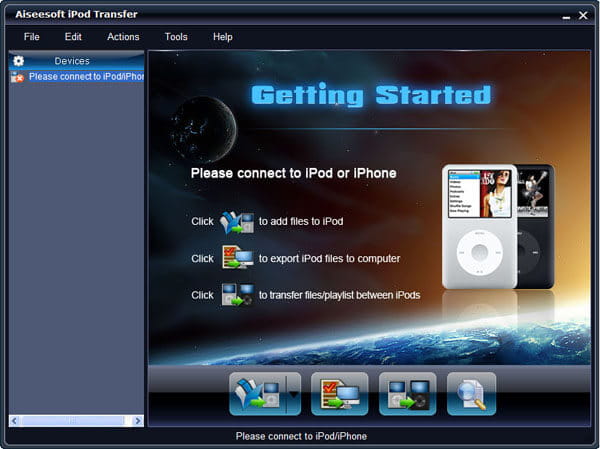
iPod Transfer

It is very easy to use:
Step 1: Connect iPod.
Plug your iPod to your computer via USB cable.
Step 2: Add songs
Click “PC to iPod” button to pick up the songs you have already converted and click “OK”. Now, you can enjoy your Limewire songs on your iPod at will.

Part 2: For Mac users, how to add Limewire songs to iPod
For Mac users, I recommend you Aiseesoft iPod Video Converter for Mac and Aiseesoft iPod Manager for Mac.

iPod Video Converter for Mac
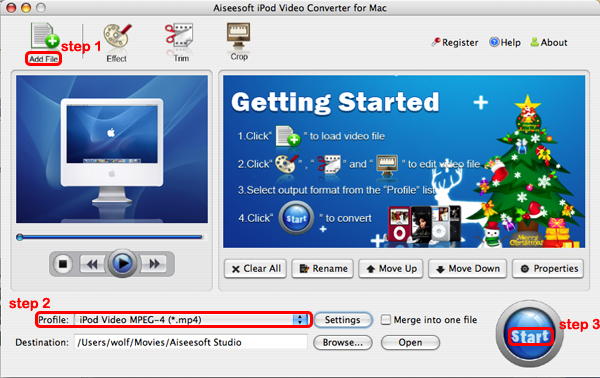
Step 1: Add file
Click “Add File” to load your music
Step 2: Choose output audio format
Click “profile” to choose your output audio format.
Step 3: Convert
Click “Start” button to begin your conversion.

To transfer converted songs to iPod, Mac users can use iPod Manager for Mac.

iPod Manager for Mac
Step 1: Connect iPod
Plug your iPod to your computer
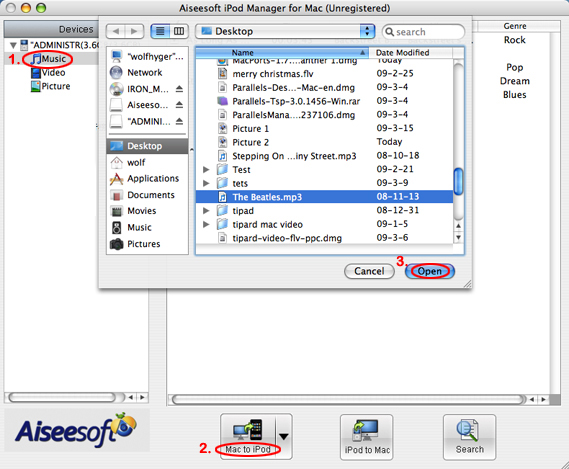
Step 2: Add music
1. Click “Music” (1)
2. Click “Mac to iPod” (2) and pick up the songs on your Mac you want to put on your iPod and click “Open” (3)
Few seconds later, the songs will be on your iPod.

2010年11月16日星期二

How to import music from iPod to iPod without iTunes

Ever since iPod was released, millions of people have been crazy about it. There appeared some assistant tools to manage iPod without iTunes:
1. Aiseesoft iPod Manager for Mac is one of the best Mac tools that can transfer Mac to iPod Shuffle, iPod backup for Mac. It is the best for iPod iTunes Mac software.
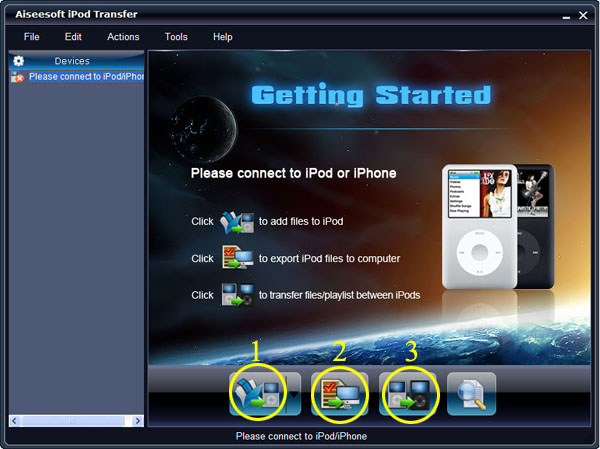
2. Aiseesoft iPod Transfer is another Windows all-in-one tool including iPod to iPod Transfer, computer to iPod Transfer and iPod to computer transfer.

Part One: How to manage iPod without iTunes on Mac. (Transfer Mac to iPod Shuffle, iPod Backup for Mac)
1. Download and install Aiseesoft iPod Manager for Mac.
For Intel:http://www.aiseesoft.com/downloads/mac/ipod-manager-for-mac.dmg
For Power PC: http://www.aiseesoft.com/downloads/mac/ipod-manager-for-mac.dmg

2. Connect iPod to Mac via USB.

Transfer Mac to iPod Shuffle:

Transfer Mac to iPod Shuffle:

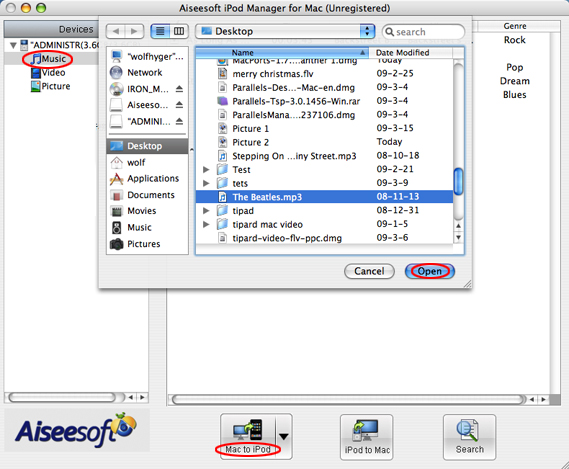
Select “Music”, “Video” or “Picture”. Then click “Mac to iPod” to choose the files you want to transfer to iPod. Click “Open” to finish the transfer.

iPod Backup for Mac:

iPod Backup for Mac

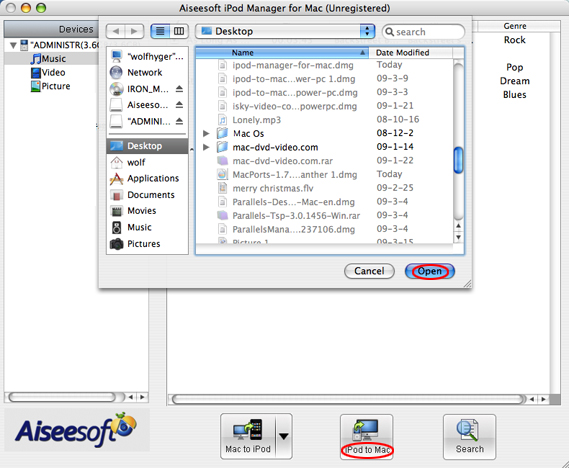
Select files you want to backup. Click “iPod to Mac” and find the place where you want to transfer your iPod files to your Mac and click “Open”.

Part Two: Computer to iPod Transfer, iPod to iPod Transfer, iPod to Computer Transfer for Windows users
1. Download and install Aiseesoft iPod Transfer.
2. Connect iPod/iPhone to computer.

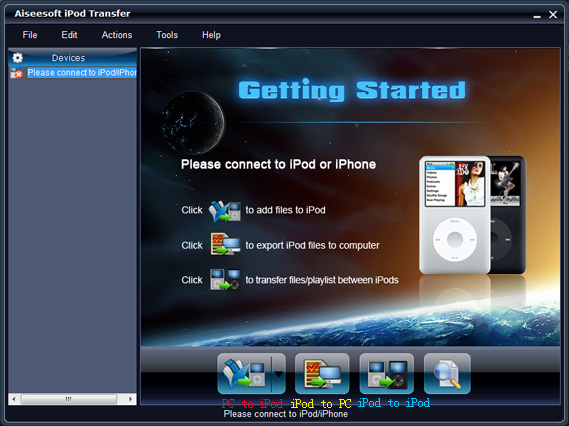
iPod Transfer

Computer to iPod Transfer
Click “computer to iPod” button to seek the files or folders that you want to import to iPod and click OK.

iPod to iPod Transfer
Pick the files that you need to transfer. Just click “iPod to iPod” button and it will show you the folder of another iPod that you want to transfer to. Click OK. The transfer can be finished automatically.

iPod to Computer Transfer
Check the file(s) you want to export in the file list. Click “iPod to computer” button to select the destination of the exporting files and start exporting files.

Hope it helps you!

2010年11月14日星期日

How to Convert and Edit HD Video

Because of the widely using of HD Camcorder, now it is really convenient to record family parties and other things you are interested in. Nowadays, people would like to share their things with the rest of the world through Internet, such as youtube.com and other video websites.

This guide aims to show you how to convert and edit the video you recorded using your HD camcorder
What you need is a powerful HD Video Converter.

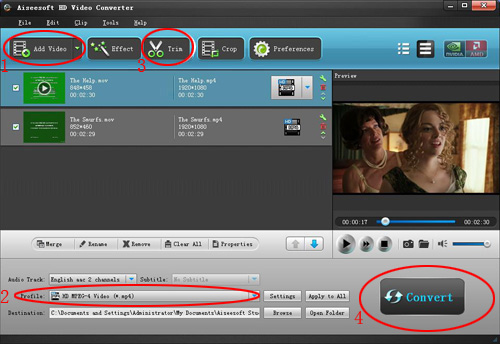
Step 1: Load Video
Click "Add File" to load the video that you want to convert to Aiseesoft MTS Converter.

HD video converter

Step 2: Choose Your Output Profile and Settings
From "Profile" drop-down list you can choose your output profile according to your need.
You can also click "setteing" adjust the settings of your output video, such as "video/audio encoder", "Video/audio Bitrate", "Channels", "Resolution" and so on..
Step 3: Video Editing
This powerful MTS Converter allows you to do many video editings.
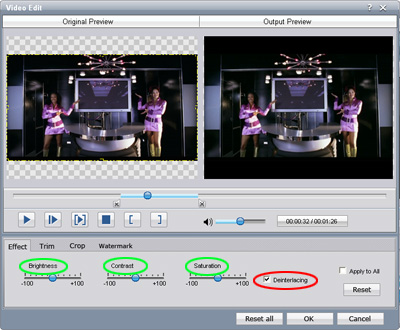
1. Click "Effect" to make special effect for your movie.
You can adjust the "Brightness", "Contrast", "Saturation" and also you can use "deinterlacing" to improve you output effect.

HD video converter effect

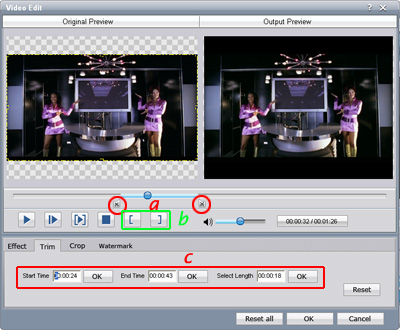
2. Trim:
"Trim" function allows you to pick up any part of your video to convert. You can just convert a part of your video that you want.

HD video converter trim

3: Crop:
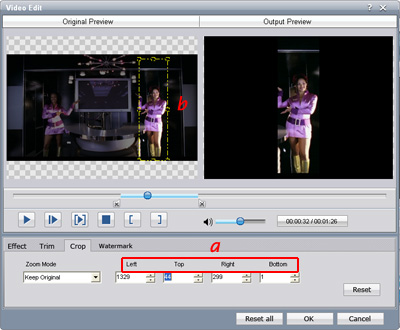
Cut off the black edges of the original movie video and watch in full screen on your iPod using the "Crop" function.

HD video converter crop

Step 4: Conversion
After you have done all the steps above you can click "Start" button to start your conversion.

Here I also recommend you some High Definition video converter, MTS Converter, TS Video Converter.

2010年11月12日星期五

MacBook Air Rises to Top of Consumer Reports Ratings

More good press for the MacBook Air. Consumer Reports updated its computer ratings earlier this week to include the machine, and while it had some criticisms, it ranked the 11-inch Air and its 13-inch sibling at the top of their respective categories and gave both machines a “recommended” rating. (Sorry, full rating access is for subscribers only.)

The 11-inch Air scored 67 points out of 100, well above its closest rival, the Toshiba Satellite, which scored a 51. Meanwhile the 13-inch model scored 78 points out of 100, two points better than the Toshiba Portege. The publication found the Airs’ performance, displays and ergonomics to be their stand-out features, but wasn’t quite as impressed by the speakers on the 11-inch model and the versatility of both, which it rated as “fair.”

And then, of course, there is the issue of price. Both Airs exceeded their closest rivals on that front as well. At $1,300, the 13-inch Air is $520 more than the Portege, and at $1,000, the 11-inch is approximately double the price of the Satellite. ’Course, the Satellite also weighs over a pound more and pales in the performance, ergonomics and display categories, so there are obvious trade-offs here.

In any event, a good showing for Apple. If the Air truly is the future of the MacBook, as Steve Jobs claims, Apple has a lot to look forward to.

2010年11月10日星期三

No Facebook User Emails for Google–But Yahoo and Microsoft Already Have Access

Facebook and Google are hardly friends these days, and they’re having more and more trouble containing their dislike. (Maybe they should take a hint from Jimmy Kimmel and his National UnFriend Day campaign.)

Background: Last week, Google stopped allowing Facebook to help its users find their friends by importing their Gmail contacts list. Google said the move was about data portability and liberation, calling Facebook a “data dead end” because it wasn’t giving its users’ email addresses to Google.

Facebook yesterday found a workaround to re-enable Google contacts importing, and Facebook engineering lead Mike Vernal commented on TechCrunch at length under his own name, charging Google with hypocrisy for disallowing contact importing for Orkut last year and “limiting user choice.”

What’s funny, though, as sources have pointed out to us, is that Facebook actually does allow email importing, specifically to Yahoo Mail and Microsoft’s Hotmail (we checked AOL mail too, but couldn’t find it there).

This is no secret; Yahoo launched its Facebook email contact importer in March of this year. In a blog post at the time, senior product manager Rick Pal said,

Importing from Facebook is super simple…After you click login, we will authorize your account and begin importing, which may take a minute or two depending on your Internet speed and how many Facebook friends you have.

Update: Microsoft confirmed through a spokesperson that its Windows Live users can import both Facebook and Gmail contacts, and said some nice stuff about its commitment to customer choice.

Access to user emails isn’t something Facebook gives just anyone. In fact, only a few partners can hook into them while the rest have to rely on users’ Facebook-formatted information available through Facebook Connect. That includes Google. The difference, according to a source, is that Yahoo and Microsoft asked nicely.

2010年11月8日星期一

IBM Offers Faster Chips, Thanks to the Memory

Chip makers use many techniques to make their products do more while using less energy. IBM is preparing to share more of its tricks, particularly an unusual type of built-in memory it had previously limited to Big Blue’s own computers.

The technology giant has seemed more interested in software and services lately, but still manufactures servers and the microprocessor chips that power many of them. That strategy requires billions of dollars to operate semiconductor factories and develop chip production processes. IBM helps defray those costs by operating a foundry service that makes chips for other companies.

IBM this week is announcing the latest production recipe it will offer foundry customers, promising big benefits for companies designing chips for devices such as routers and switches used in high-speed communication networks. The new offering comes with blocks of pre-designed circuitry-–including microprocessor technology from ARM Holdings, the favorite in cellphones–so that customers can mix and match features to handle particular communications or computing chores.

Read the rest of this post on the original site

How to rip DVD, convert video, transfer iPod music and make iPhone ringtone for Windows/Mac

This guide aims to show you how to rip a DVD, convert video and transfer music between iPod and computer/two iPod, make your own iPhone ringtone.

Part 1. How to rip DVD to iPod/iPhone/Sansa/PSP/Zune and other MP4 and MP3 Players
Part 2. How to convert all video to MP4, AVI, FLV, 3GP, WMV, MOV, MPG, RM, RMVB, MKV, VOB…
Part 3. How to transfer music from iPod to computer, computer to iPod, iPod to iPod.
Part 4. How to make your own iPhone ringtone for free

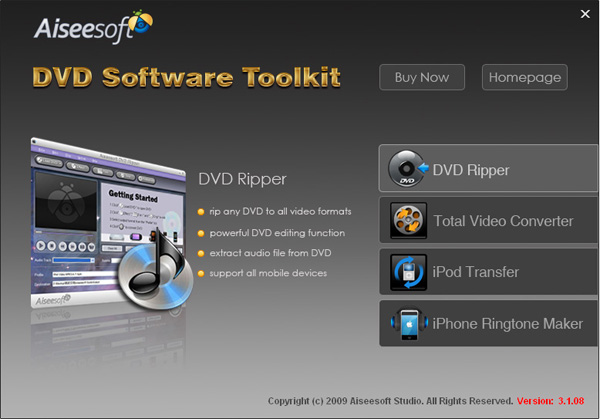
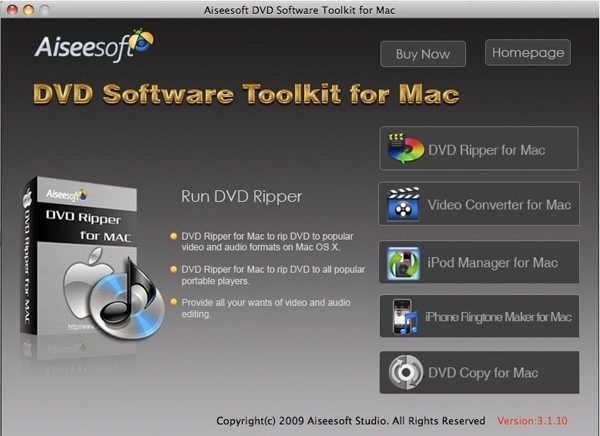
Believe or not, to do the things above what you need is download Aiseesoft DVD Software Toolkit and few clicks.

DVD Software Tookit

Part 1. How to rip DVD to iPod/iPhone/Sansa/PSP/Zune and other MP4 and MP3 Players.
Step 1. Click “DVD Ripper” on the main interface to run Aiseesoft DVD Ripper

DVD Ripper

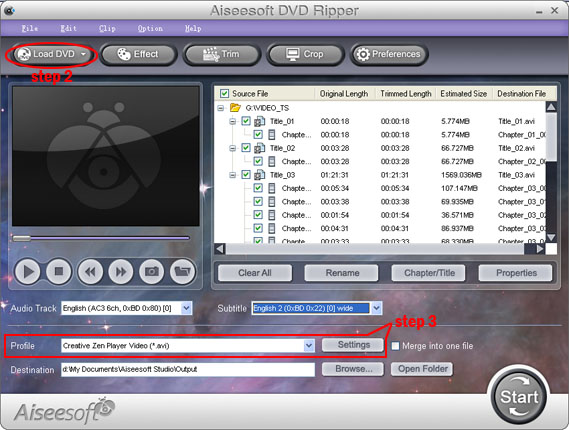
Step 2. Open your DVD Drive and put your DVD in it, then click “Load DVD” and choose “Load DVD” to load your DVD into this best DVD ripper.
Step 3. Choose your output format from the “profile” drop-down list. This best DVD ripper provides you so many formats that out of your expectation, such as “iPod video MPEG 4 (*.mp4)”, “iPhone 3G MOV 640*480 (*.mov)” and so on.
After you choose your output format, you can adjust your output video’s settings, such as “Resolution”, “Frame Rate”, “Bitrate”, “Sample Rate” and so on.
Click “Start” now to begin your conversion and you will get your video soon.
To make your output movie more enjoyable you can do some editings to it through this best DVD ripper. You can choose a part of your movie to convert (trim), remove the black edges of your DVD movie (crop) and also adjust the effect (effect) and select subtitle and audio track.

Part 2. How to convert all video to MP4, AVI, FLV, 3GP, WMV, MOV, MPG, RM, RMVB, MKV, VOB…

Step 1. Click “Total Video Converter” on the main interface to run Aiseesoft Total Video Converter

Total Video Converter

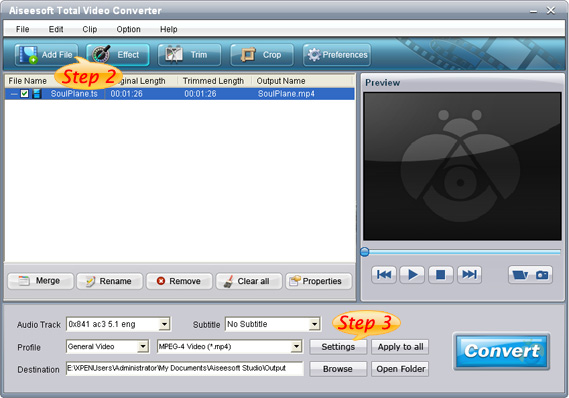
Step 2. Click “Add File” to load the video you want to convert.
Step 3. Choose output format by clicking “profile” and customize your own output video by clicking “settings” to adjust the Resolution, Frame Rate, Bitrate and so on.

Before you click “Start” to begin your conversion, you can do some editing works, such as pick up a part of your video to convert(trim), choose your own play region(crop) and put two or more files into one.(merge into one file).
OK, now you can begin your conversion

Part 3. How to transfer your songs and videos bewteen iPod and computer/iPod

First, Click “iPod Transfer” to run Aiseesoft iPod Transfer


iPod Transfer

Click “Computer to iPod” button, it will allow you to transfer songs and videos from your computer to iPod easily.
Click “iPod to Computer” button, it will allow you to backup your songs and videos from iPod to your computer.
Click “iPod to iPod” button, it will allow you to transfer songs and videos from one iPod to another iPod dirrectly.

Part 4. How to make your own iPhone ringtone for free

Download Aiseesoft iPhone Ringtone Maker

iPhone Ringtine Maker

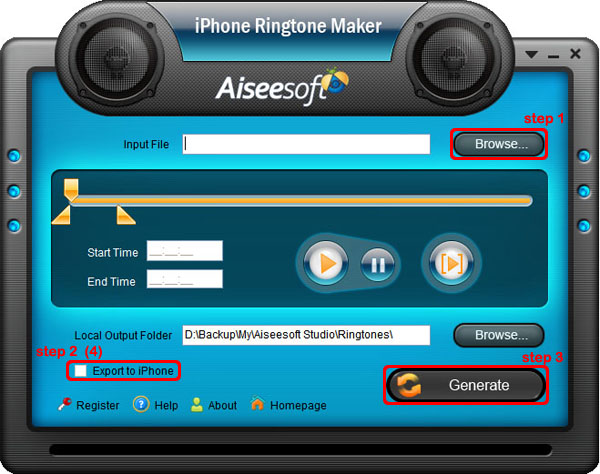
Step 1: Click “Browse” on the right side of "Input File" to import the file that you want to make ringtone from it.
Step 2: Play it and listen the music to find the segment that you want to use it as ringtone. Then drag and click the start & end slider to set your wanted segment, or type the start & end time in the corresponding text box directly to get the exact segment. You also can pre-listen the converted audio before generate.
Step 3: Click “Browse” on the right side of "Local Output Folder" to choose the output destination.
Step 4: Check "Export to iPhone" option, the converted ringtone will be load to your iPhone directly.
Step 5: After all the settings are finished, click “Generate” to begin making your own iPhone ringtone.
If you are a Mac user, I recommend you Aiseesoft DVD Software Toolkit for Mac

it has the same functions as the windows one. You can use it easy rip your DVD, convert your videos, transfer your iPod songs and videos bewteen iPod and your Mac and also make your own ringtone.

DVD Software Toolkit for Mac

2010年11月7日星期日

How to upload videos to YouTube from iMovie

Making movies on your Mac is fun and easy, but how do you share them with the world? Many people choose to upload videos to YouTube from iMovie.
Part 1, How to upload videos to YouTube from iMovie HD
Part 2, How to upload videos to YouTube from iMovie

Part 1, How to upload videos to YouTube from iMovie HD
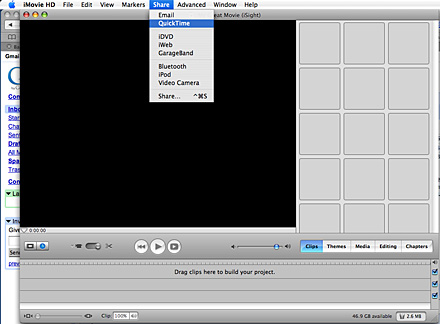
1. Make sure your video is the one you want to upload, then click the share button in the menu bar.
2. Select the QuickTime option.

upload video to youtube

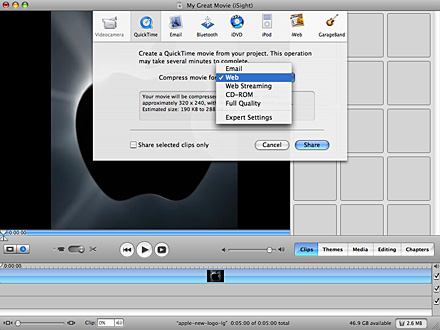
3. Click on the menu for your compression options and select web.

upload video to youtube

4. Save your movie to the desktop or somewhere else. Find your movie and click it once then press apple+I to get its information. Make sure it is less than 100 megabytes or YouTube will not accept it.
5. Log in to YouTube and click on the “upload” button at the top of the page.
6. Enter the name, category, tags and any other information you want for your video.
7. Next click on “upload a video” once you have finished entering your videos information.
8. Click on the “Choose File” button and choose your video file from were you saved it. Make sure its your compressed QuickTime video and not the iMovie file.
9. Lastly click on the “Upload Video” button, it may take a few minutes for your video to upload and it may take several hours for it to show up on YouTube.
I also recommend CD quality. You can save the movie to CD-ROM and then you can upload movie from iMovie HD to YouTube!

Part 2, How to upload videos to YouTube from iMovie
1. Make sure your video is the one you want to share, then click the share button in the menu bar and select YouTube.
2. Choose your YouTube account or create a new one
3. Confirm your sign in.
4. Select the category, name, description, and tags for your video.
5. Select your publish size and click Next
6. Now click the publish button.
7. Your video will be ready to watch on YouTube in 2-120 minutes.

Google has released basic software called Vidnik which is the quickest, simplest way to make movies using the built - in camera on your Macintosh and upload those movies to your YouTube account. You must first sign up for a free YouTube membership to upload videos.
Learn more: How to upload videos to YouTube easily and quickly on Mac?

2010年11月5日星期五

How to make iPhone Ringtones on Mac and Windows for FREE

I have many iPhone Ringtones on my iPhone, and I change them once one day. But I don’t buy them online. I just make iPhone Ringtones myself by Ringtone Maker Shareware. Actually, iPhone Ringtone maker is m4r Ringtone Maker, such as mp3 Ringtone Converter, WMA Ringtone Converter and WAV Ringtone Converter. There are also iPhone Ringtone Converter for Mac or iPhone Ringtone Creator Mac.

Here I will share how to make iPhone ringtones on Windows and Mac.
For Windows:
Firstly, you need download iPhone Ringtone Maker.

iPhone Ringtone Maker

Step 1: Load Music
Click “Browse” on the right side of “Input File” to find your music that you want to make as your iPhone ringtone and click “Open” to load it into iPhone Ringtone shareware.
Step 2: Choose iPhone Ringtones
1. Drag your “Start Slider” to the beginning of the “Slider Bar” and “End Slider” to the end, then Listen iPhone Ringtone to listen your whole audio file.>br/>2. a. Drag the “Start Slider” to find where is the beginning of your ringtone and Drag “End Slider” to make an End of it.
b. Type the exact “Start Time” and “End Time” in the box to choose your ringtone.
3. ClickPre-listen iPhone Ringtoneto pre-listen your ringtone.
4. If you want to put your ringtone directly on your iPhone, just plug your iPhone to your computer and check “Export to iPhone” (4). If you just want to put it on your computer, click “Browse” on the right of “Local Output Folder” to find a place to put it.
Step 3: Generate iPhone Ringtones After you have done the 3 steps, just click “Generate” to make your iPhone ringtones.

For Mac:
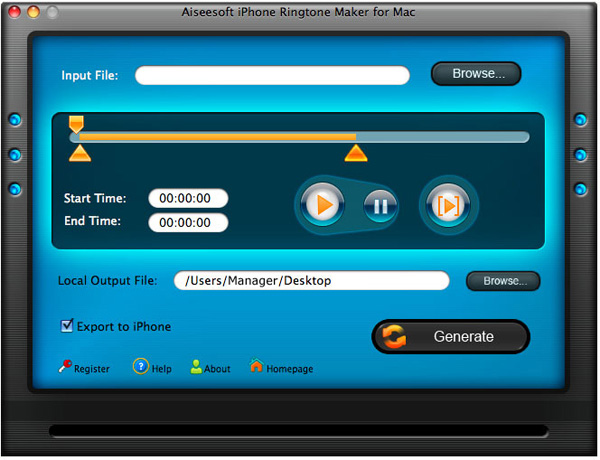
If you are a Mac user, you need to find iPhone Ringtone Converter for Mac or iPhone Ringtone Maker for Mac.
Here I have one for you, just download this iPhone Ringtone Maker for Mac.

iPhone Ringtone Maker for Mac
The process of making your own iPhone ringtone on Mac is the same as on Windows.
Hope you enjoy this DIY process.

2010年11月3日星期三

Mark Zuckerberg and Misery as Motivation

Did Mark Zuckerberg start Facebook friending because he was unable to make friends? That’s the main theme of the hit film The Social Network. Zuckerberg didn’t care about money, several say; he was compensating for a lack of friends.

Read the rest of this post on the original site

2010年11月2日星期二

Inside the Google Books Algorithm

Google is famous for the brilliance of its algorithm for searching web pages. While the company looks at dozens of factors in determining which results to display, the heart of the search engine is using links between pages to rank their relevancy. We have come to depend on Google to give us exactly what we want.

Read the rest of this post on the original site

2010年11月1日星期一

Seagate: Buyout Talks Live, Financing In Place, N.Y. Post Says

Seagate shares are getting a boost this morning from an upbeat story in the New York Post on the prospects for talks on taking the company private.

Yesterday, the stock took a hit on a report that talks had collapsed. That was followed by multiple reports that KKR was likely to drop out of a group that has been discussing making an offer for the disk-drive maker.

The Post says that TPG Capital has brought in a new partner–which it didn’t name–to replace KKR in the contemplated joint bid, asserting that “TPG is still very much in talks to take the business private.”

Read the rest of this post on the original site